Hosting a MultiPresence Session from a Windows Device
In MultiPresence mode, multiple Guest users may be connected to the Patient Access Device. The session is controlled by a Host user. Once you log on, you will see the My Care Locations list.
| Win | |
|
|
Green — Patient Access Device is Ready |
|
|
Blue — Patient Access Device is Busy |
|
|
Gray — Patient Access Device is Offline or Status is Unavailable |
|
|
Three Blue Connected — MultiPresence is Available |


My Care Locations
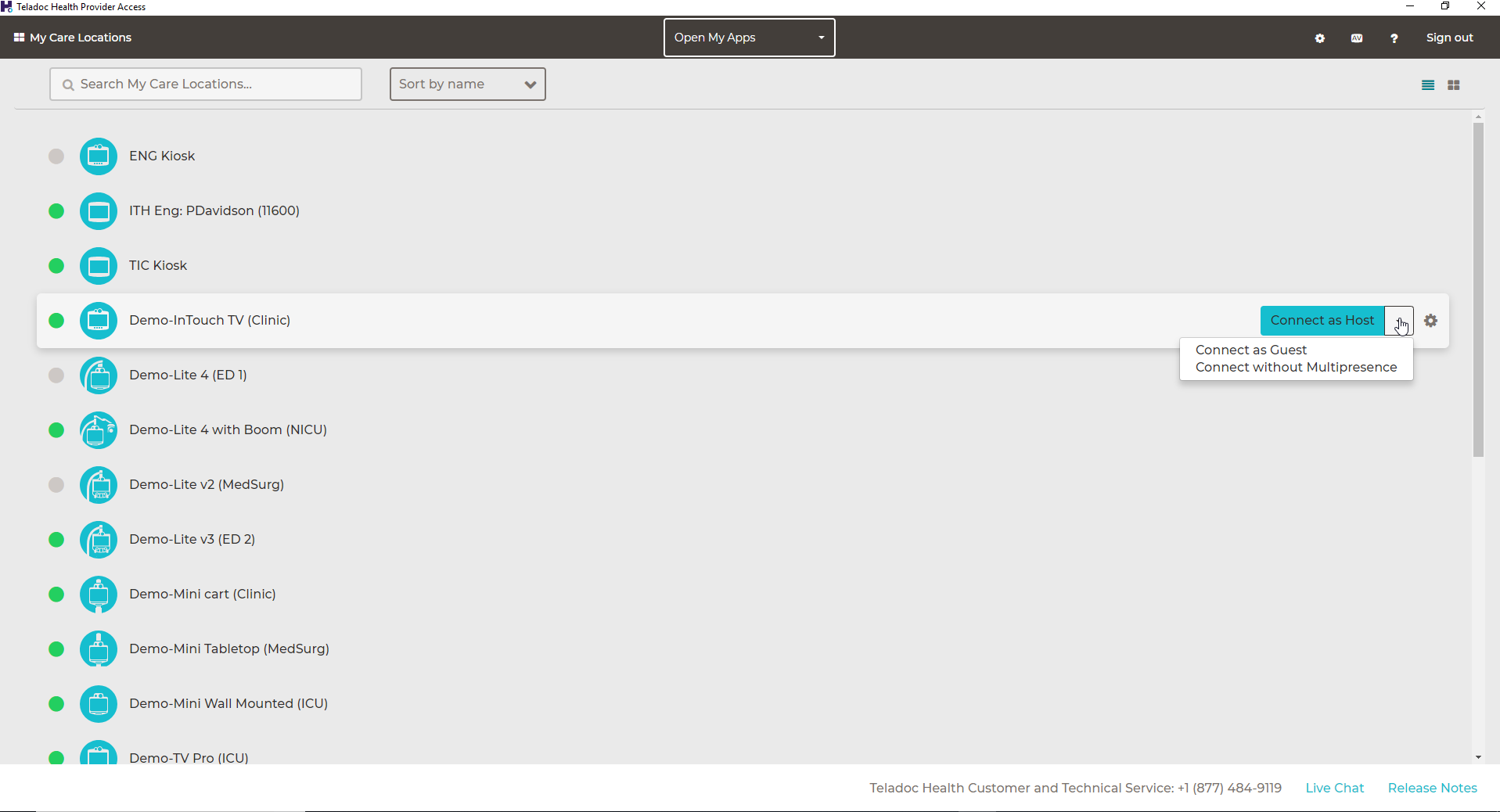
- Locate the device to connect to.
- Select from the dropdown list:
- Connect as Host - The default. The host has the ability to control access of guest users and how they interact with the remote session. The host also has control of the Patient Access Device.
- Connect as Guest - There can be multiple guests during a MultiPresence session. The guests have limited capability during the session. The host has the ability to transfer the host status to any guest and can also remove a guest from the session.
- Connect without Multipresence - This option only allows for one user to log into a session. Will show the device as unavailable for other users.
Notes
- If a Guest connects first, they may be requested to stand by for the Host to start the MultiPresence session. Contact your Provider Access Software representative for more information on controlling guest access to a MultiPresence session.
- If the Host has already connected, the Patient Access Device status shows the MultiPresence icon,
 , in the My Care Locations list.
 - When connecting as a Host in MultiPresence, you must connect using the Host option in the connection drop-down instead of clicking Connect next to the Patient Access Device name, which will connect to the device without MultiPresence. If this occurs, disconnect from the device and reconnect to the device by selecting Host from the Connect drop-down menu.
Default Connection Preferences
You can ask Admin to default your preference for connecting to devices. Your role can be defaulted to:
- Host
- Guest
- Guest only
- Connect (Connect without MultiPresence)
Double clicking on the device row will connect you with your default preference set by your admin.
After Connecting to a Patient Access Device
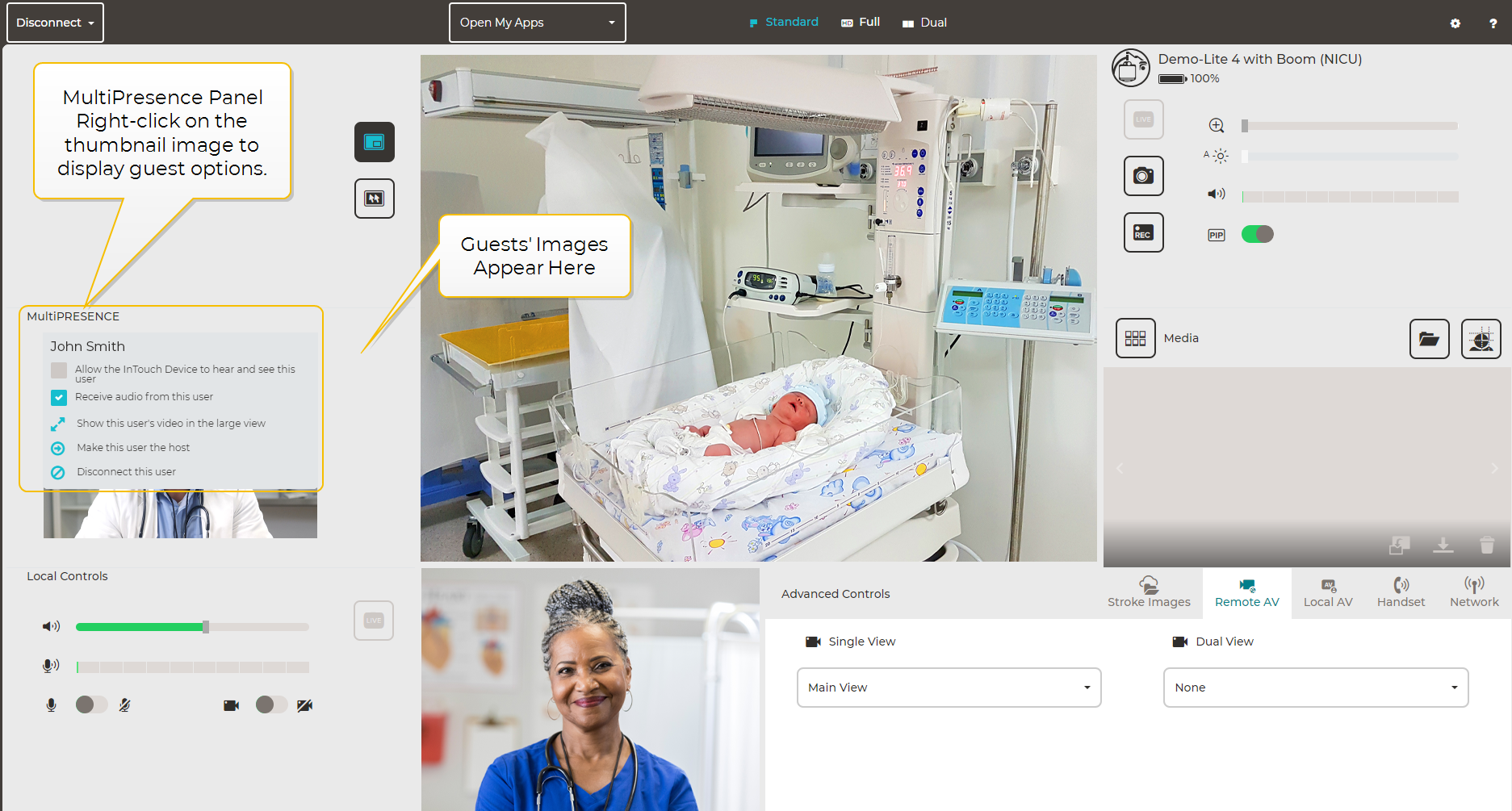
Host controls, including camera movement and zooming, and other views, are displayed on the Guest's device.
The Host controls the access each Guest is allowed in the session using a right-click menu. Right click on any thumbnail of a Guest and set the session access for that Guest from the following choices:
- Allow the device to hear and see this user
- Make this user the host unless the user is set to 'Guest only' role by the admin
- Disconnect this user
NOTES:
- The default access setting for a Guest joining the session as a full participant is that the Guest is able to be seen and heard on the Patient Access Device.
- To change the default to not allow Guests to be seen and heard on the Patient Access Device, contact your Teladoc Health representative for assistance.
The Host will see a thumbnail video of the Guest in the MultiPresence Panel.